Roles and Workspaces
Use roles in Dubformer Studio to manage access levels and define what each user can do inside your company workspace. Below you can find a description of all available roles.
Admin
Admins manage company-level settings and have the highest level of access.
What Admins can do
Manage company settings and user permissions.
Invite users with the roles up to Admin
Change user roles.
Manage role permissions
Set-up authentication restrictions
Manager
Managers oversee production workflows and work directly with project execution.
What Managers can do
Monitor the status and progress of projects and tasks.
Assign Editors to tasks.
Invite new users with the Editor role (if permitted)
Editor
Editors complete operational tasks assigned to them based on their skills.
An Editor can perform as:
Transcriber
Review ASR-generated transcription.
Correct speaker labels and diarization mistakes.
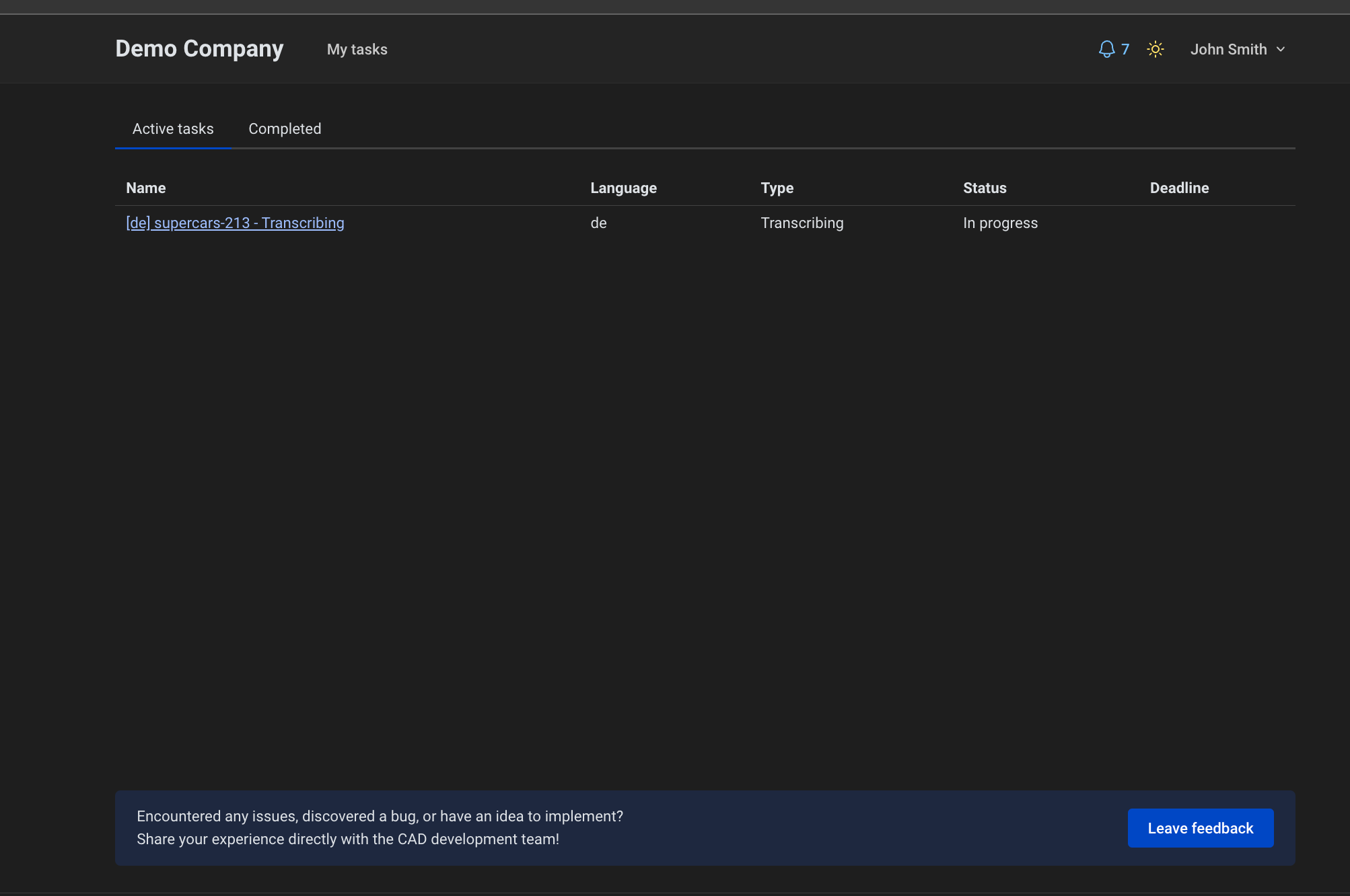
Workspace view for Editors
Editors see tasks assigned to them on their desktop.
Tasks appear based on their skills and role permissions.
User Roles & Permissions Overview
Clear breakdown of access levels across Editor, Manager, and Admin roles.
Selecting the Company Workspace
Users with access to multiple workspaces can switch between them.
How to select a workspace
Log in to Dubformer Studio.
In the top navigation, click the dropdown menu next to the company name.
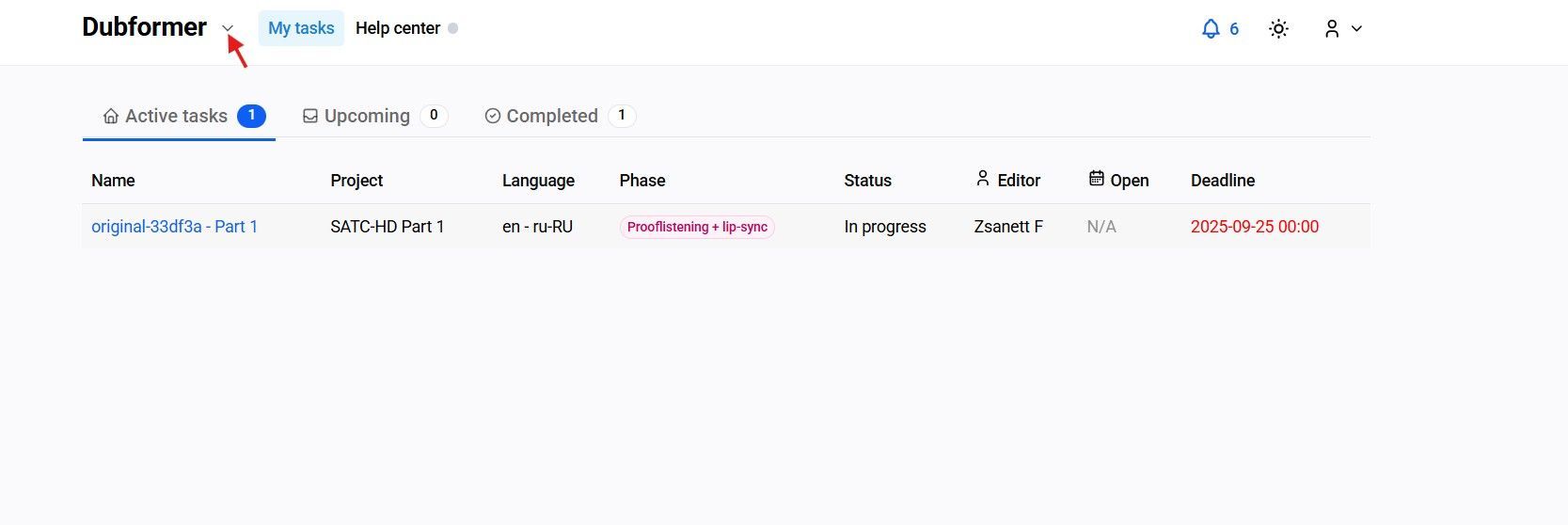
From the list, select the company workspace.

Once selected:

it will give access to tasks, projects, and other resources based on the user role in that workspace.Note:
User roles can be different across company workspaces. For example, the user may be a Manager in one workspace and an Editor in another. The available permissions will depend on the workspace that is selected.